 Boreal Studio
Add a sticky note to a local PDF and download it
Practice with a two-page PDF: add a comment, download the edited file and check it in another reader. See the network boundary we tested.
By Boreal Studio · Published
Open PDFPractice with a two-page PDF
This walkthrough adds a sticky note to page 1, downloads the edited PDF and checks that the note and both pages survive. Use the sample first: it contains ordinary text and no personal information.
Download two-page pdf input
Download checked annotated pdf
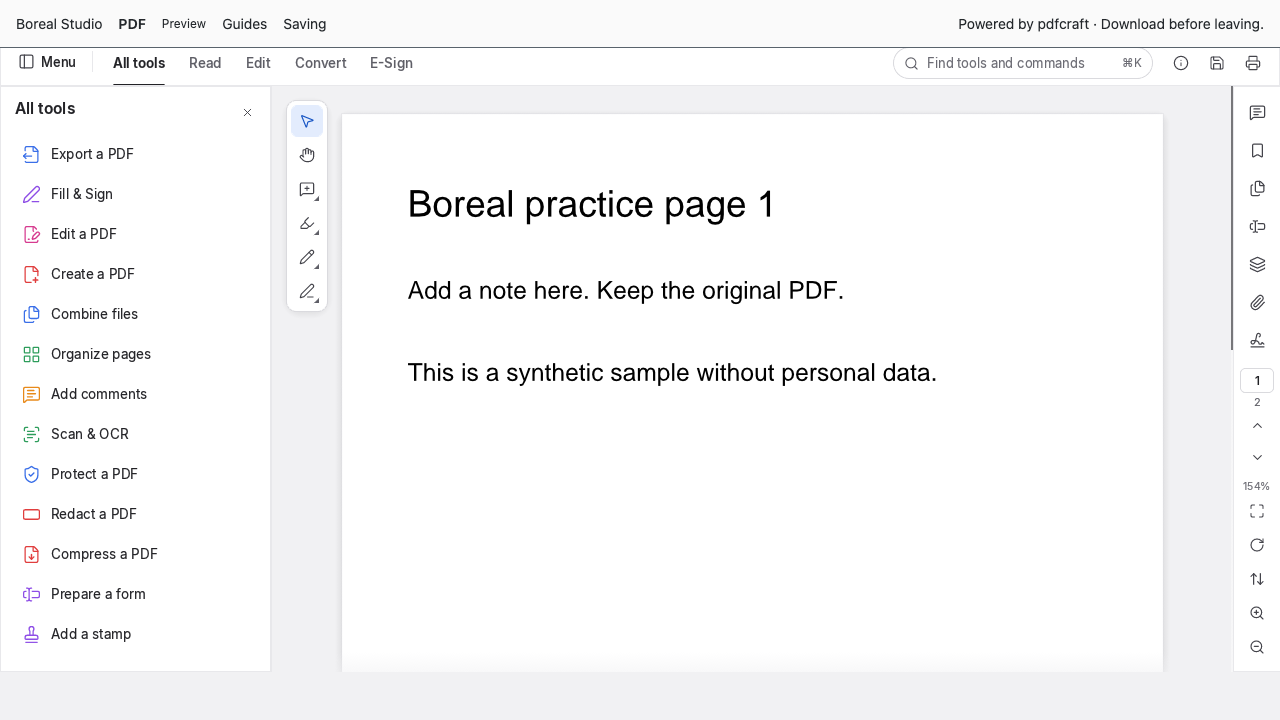
Open the file from your computer
Download the input. On PDF’s welcome screen, choose Open file and select it from your computer. To open another file, focus the editor and press Ctrl+O, the shortcut used in our browser check. The sample has two pages headed “Boreal practice page 1” and “Boreal practice page 2”. If the default renderer cannot start, try PDF with WebGL.
Add a sticky note
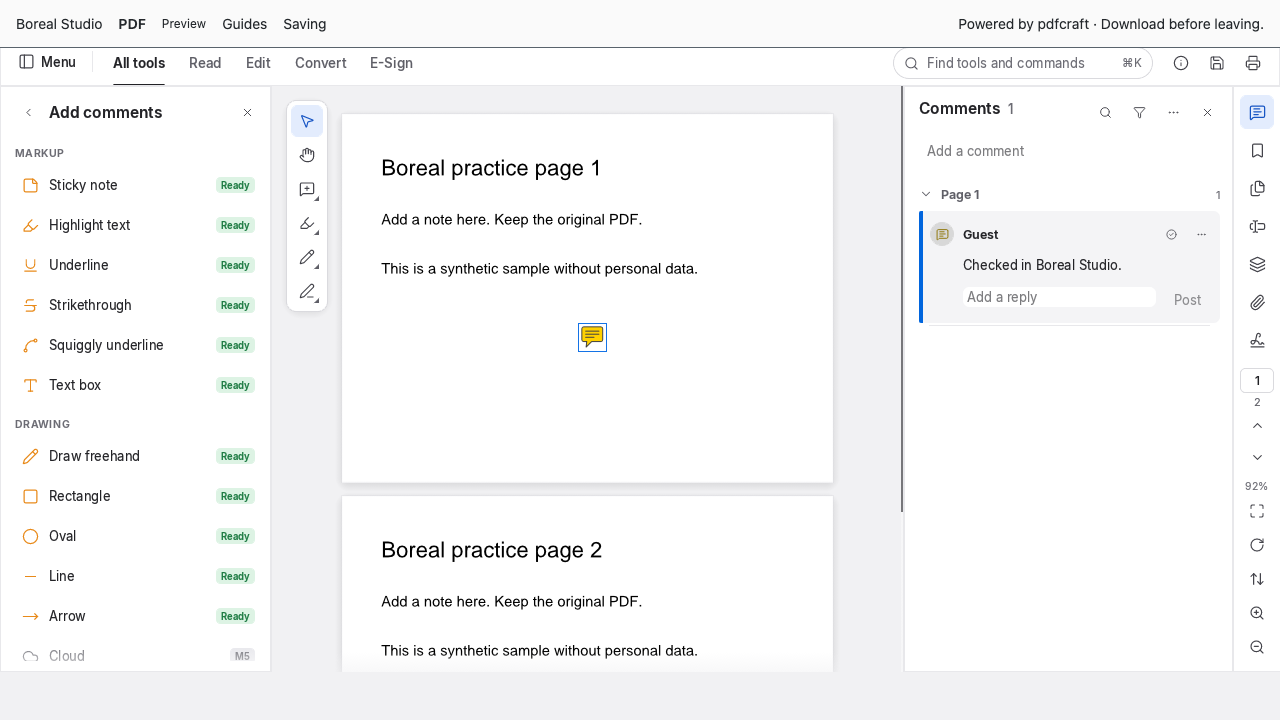
In All tools, choose Add comments → Sticky note. Wait for the Comments panel to open, then click a clear area on page 1. Type “Checked in Boreal Studio.” into the note and choose Post. The note icon appears on the page and its text appears in Comments.
Save, find the download and reopen it
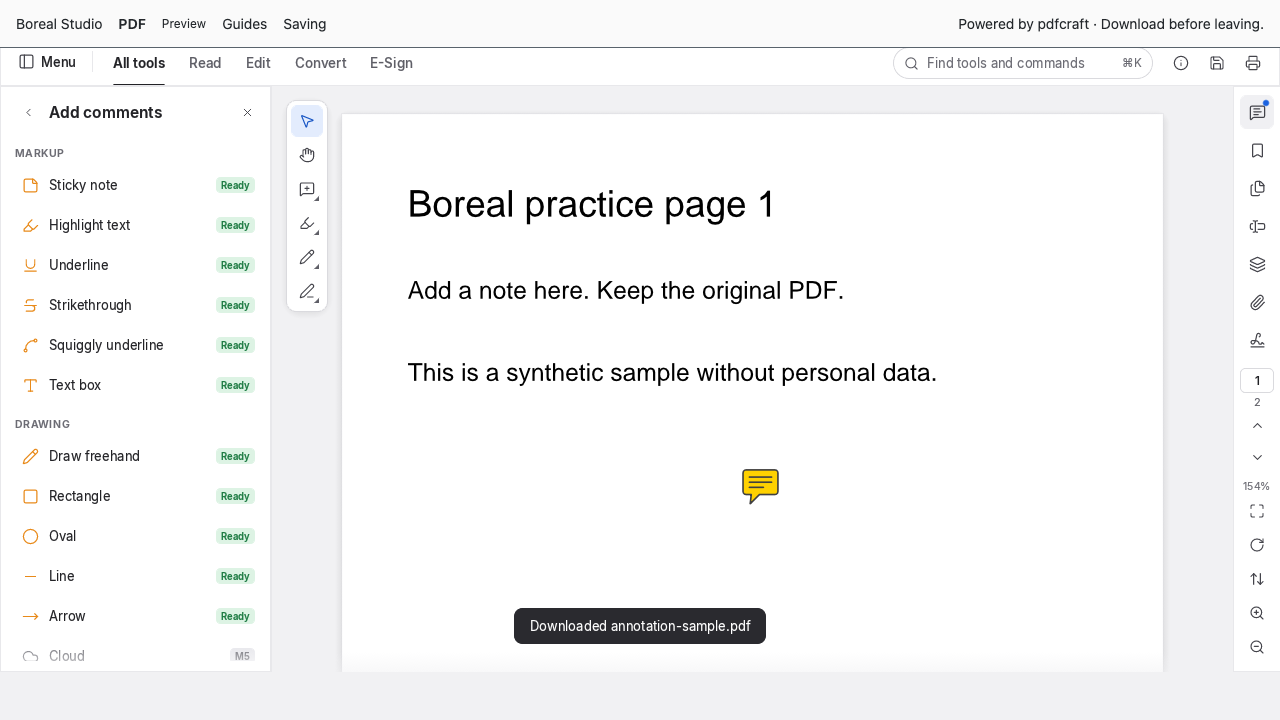
Choose Menu → File → Save. In this browser build, Save downloads an edited PDF. The file may have the same name as your input, so keep both copies and rename the edited one. Find the actual download before closing the editor.
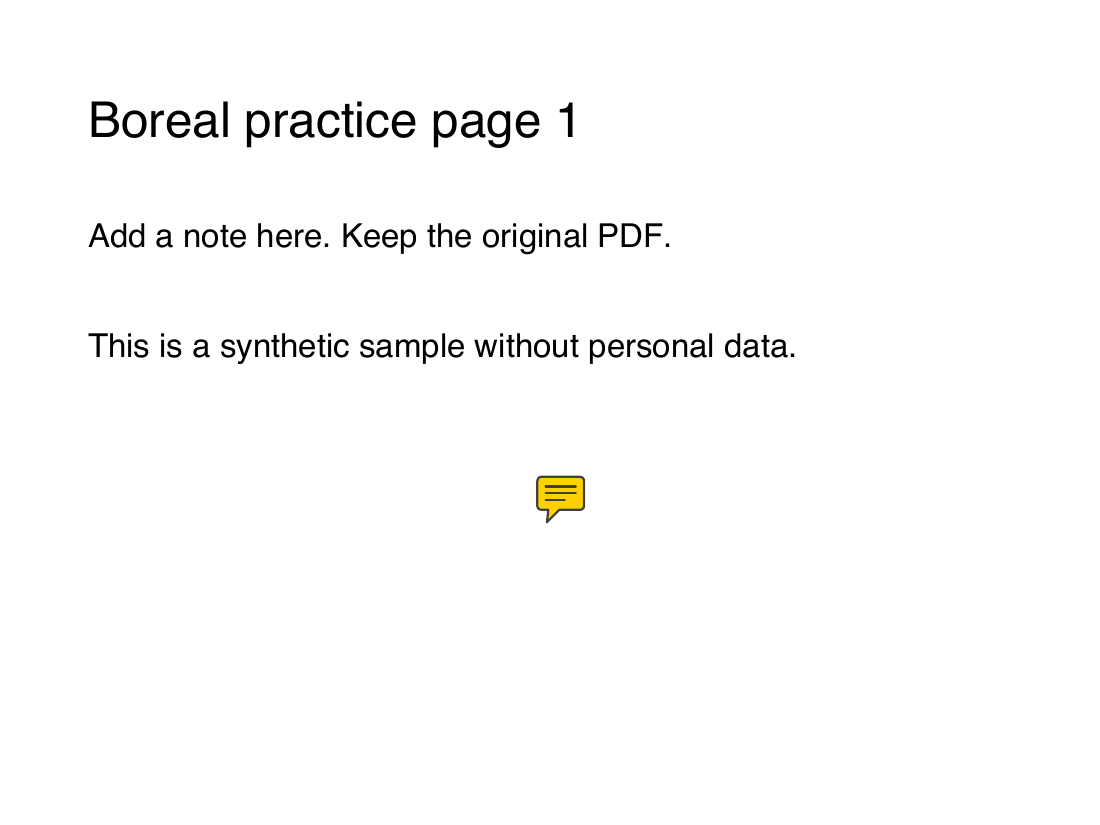
Open the download again and open Comments. Confirm the note text and both pages. Also open it in your usual PDF reader and enable its comments panel if necessary: sticky notes do not always display their text directly on the page.
What we checked about uploading
For this local-file workflow on studio.borealbit.com, we observed the browser’s network requests from editor startup through opening, posting the note, downloading and reopening. We observed only GET requests for this website’s resources, with no request bodies and no external requests. No file upload was observed in that tested workflow.
The editor downloads its program before processing the local file. Optional URL, OCR or other upstream features were not exercised; this result does not establish their network behavior or guarantee every feature works offline. See the saving and storage guide.
Keep the claim as small as the test
Checked locally and on studio.borealbit.com with PdfCraft 0.5 in Chrome using software WebGL. This proves a sticky note on this two-page PDF. It does not prove editing existing text, OCR, encrypted-file support or secure redaction. A comment or a colored rectangle is not evidence that sensitive text has been removed.
If a note is missing after download, keep the editor open, check Comments, save again and inspect the new download. Try the sample to separate a general workflow problem from your PDF’s compatibility.