 Boreal Studio
Open, edit and download a PNG in your browser
Try a small PNG in Boreal Photo: open the sample, paint a stroke, export a PNG and reopen it to check the result.
By Boreal Studio · Published
Open PhotoStart with a small, known file
You can try the complete workflow with our 128 × 96 pixel PNG: open it in Photo, paint a stroke, export a PNG and reopen the download. This is a small raster editing example, not a promise that every image format or large document will work.

Download the sample

Download the checked result
Open the sample in Photo
Download the sample first, then open Photo. Wait for the editor to finish loading. Use the File menu and choose Open, then select the sample PNG from your computer. The current editor still displays its upstream PhotoCraft name.
Use a desktop browser for this example. If the default renderer cannot start, try Photo with the WebGL renderer. That changes the renderer, not the file format.
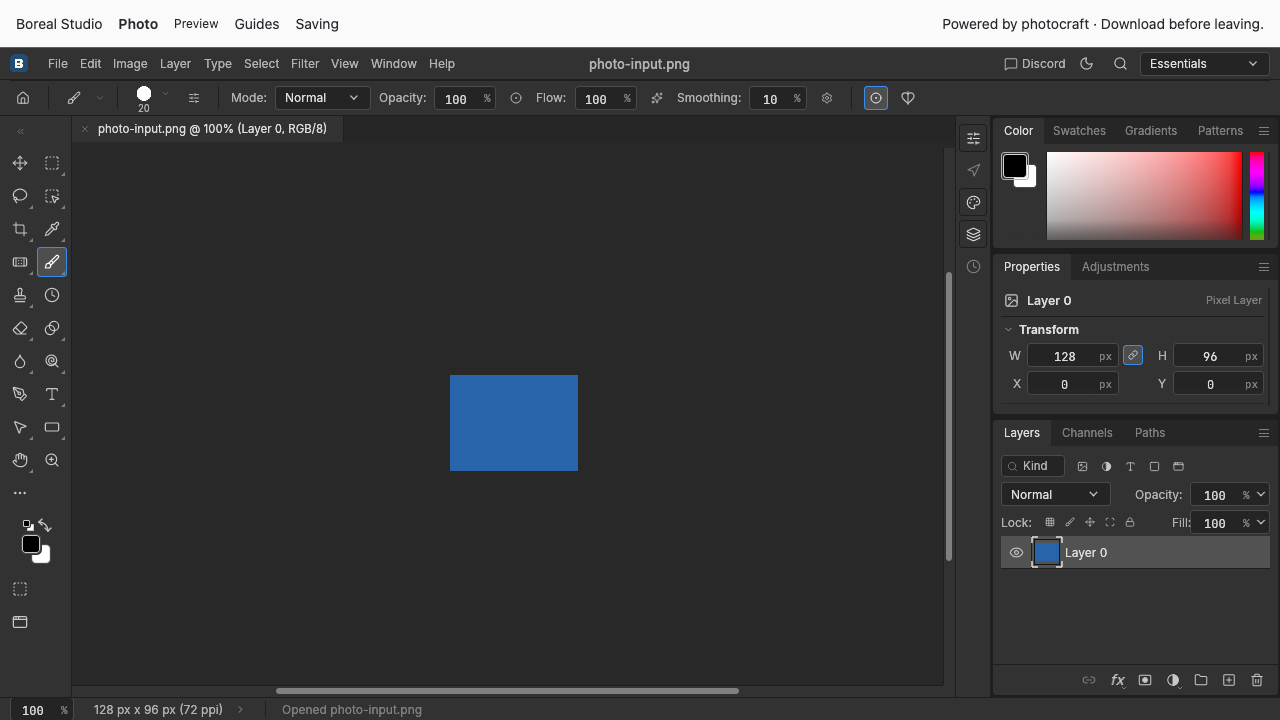
Make one visible edit
Select the Brush tool, then paint a short stroke over the image. Keep the edit simple so that you can recognize it in the download. Our example uses a black stroke; its exact position is not important.
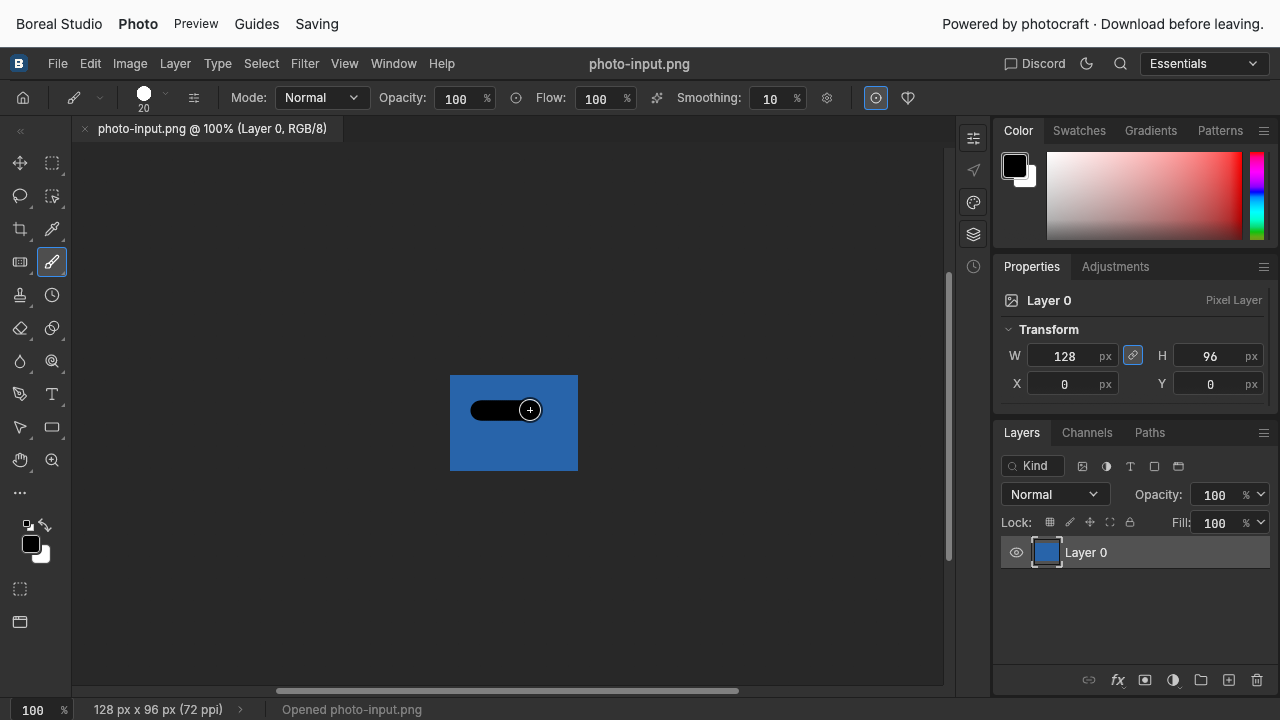
Export a PNG and reopen it
Choose File → Export → Quick Export as PNG. This example downloads a PNG directly. Find the download in your browser, then open it again through Photo’s File menu.
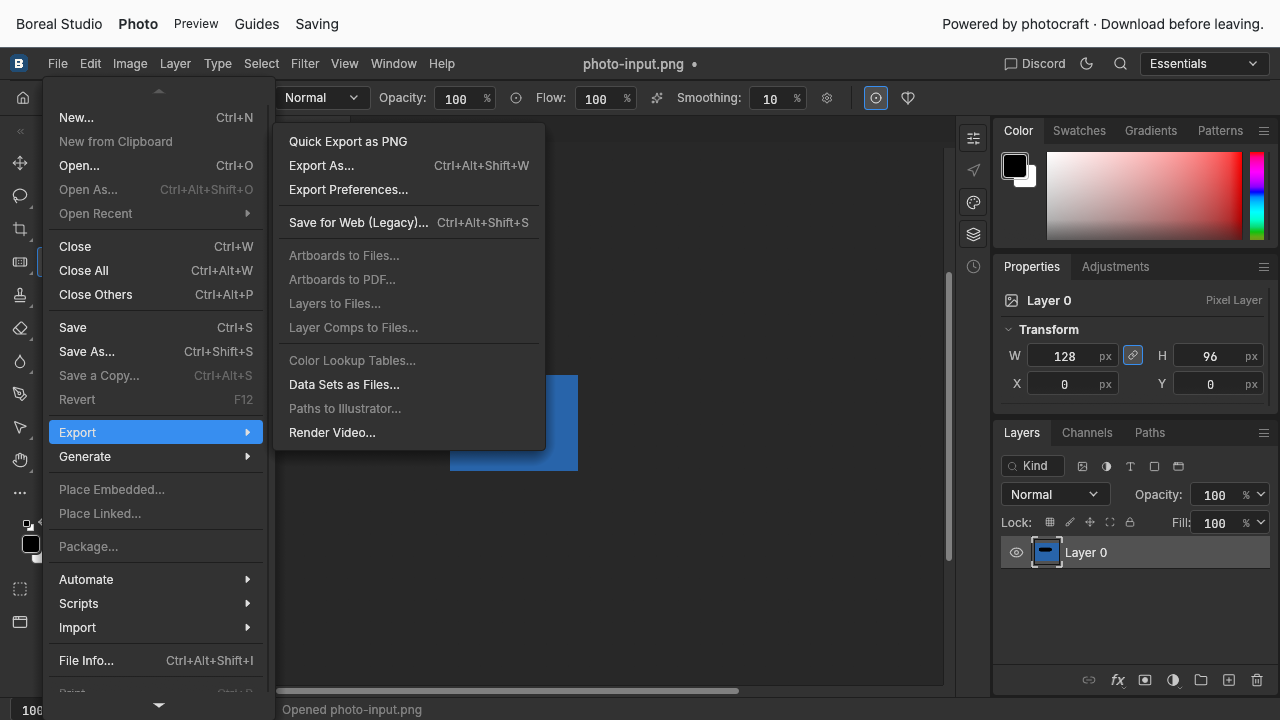
- The downloaded file should be a PNG with dimensions 128 × 96.
- Your painted stroke should be visible after reopening.
- Keep the original file as well as your edited copy.
A PNG keeps the rendered image. Do not assume it preserves editable layers or a complete project. See how saving and exporting differ before closing the editor.
If the result is not what you expected
If the editor does not start, try the WebGL link above or another current desktop browser. If opening your own image fails, repeat the task with the small sample to separate a startup problem from a file compatibility problem.
If you cannot find a download, check your browser’s downloads and repeat the PNG export. A painted canvas is not evidence that a file has been saved. Keep the editor open until you have found and reopened the result.
This example was checked locally and on studio.borealbit.com in Chrome with software WebGL and PhotoCraft 0.6. It does not establish general PSD compatibility, general transparency or color accuracy, large-image performance, Safari/Firefox support, or touch editing.
For a separate checked example with transparent and partly transparent pixels, see how to check a PNG’s background.