 Boreal Studio
Change an SVG’s color in your browser
Open a simple SVG in Vector, change its fill, export as SVG and reopen the result. Download both the original and checked output.
By Boreal Studio · Published
Open VectorStart with a shape you can recognize
This example changes one blue rectangle to orange and downloads a new SVG. The sample has a 128 × 96 viewBox, one shape and no fonts, filters or external images. It lets you check a simple vector edit before trying a more complex logo or a generated SVG.

Download blue svg input

Download orange svg output
Open the SVG in Vector
Download the blue input, then choose File → Open in Vector. The editor currently displays its upstream VectorCraft name. Our screenshots use English: if your menus use another language, choose VectorCraft → Interface Language → English. If the renderer cannot start, try Vector with WebGL.
Some non-English labels have missing glyphs in this Preview. Use English menus for this walkthrough; additional fonts and complex SVGs still need checking.
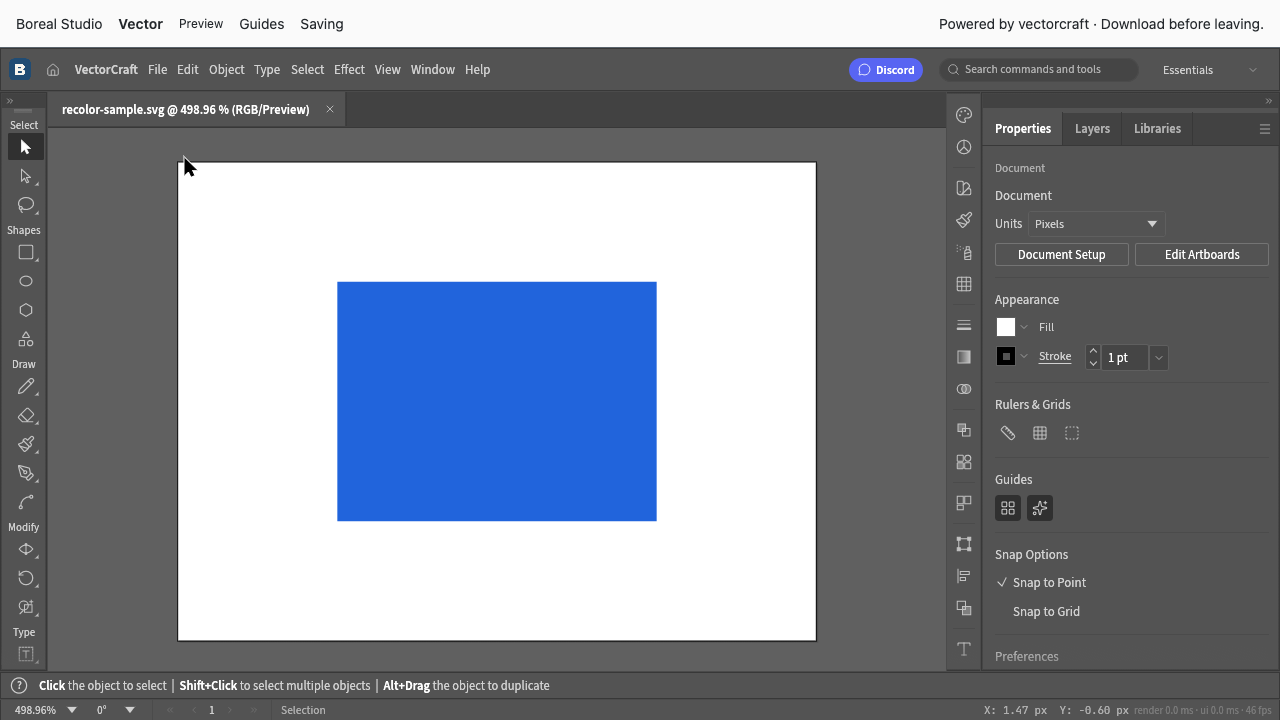
Select the rectangle and change its fill
Use the Selection arrow and click the rectangle. You should see a selection box around it. In Properties → Appearance, click the blue Fill swatch, then choose the first orange tile after the dark red tile in the top row. Click outside the popup to close it. Our chosen tile exports as #f15a24.
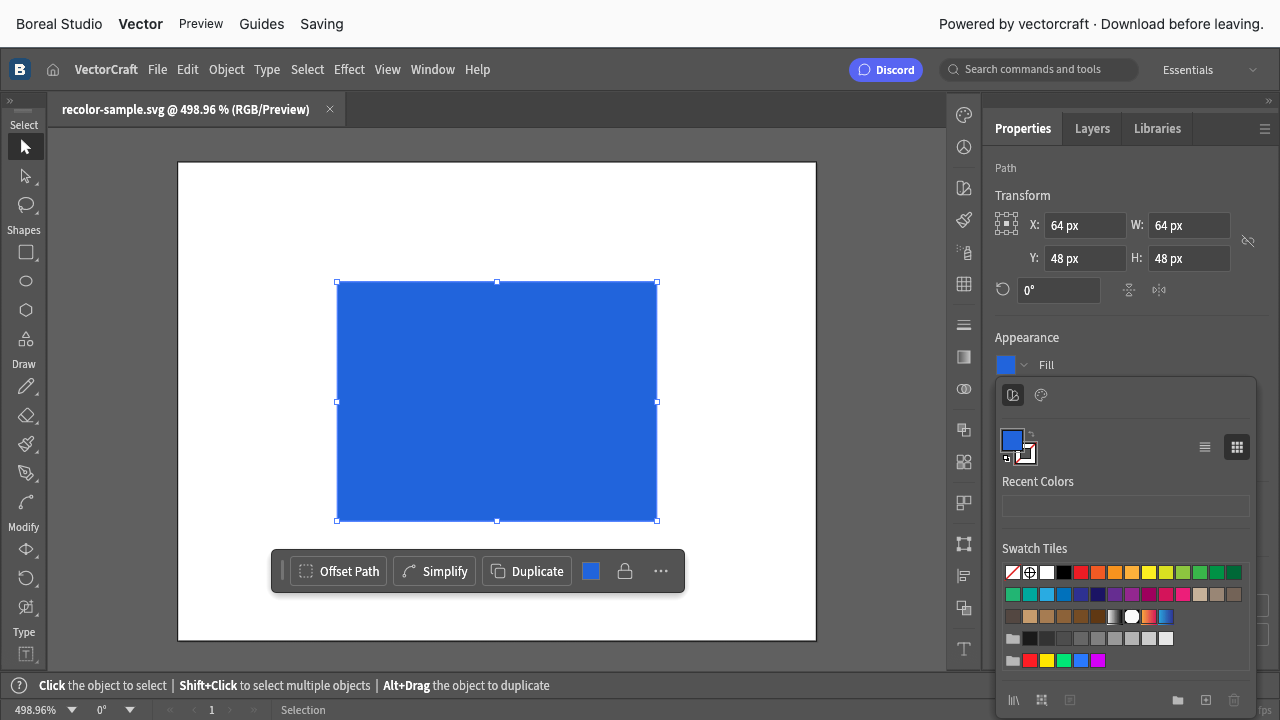
Export as SVG and reopen the download
Choose File → Export → Export As SVG…. For this sample, leave SVG 1.1, Internal CSS and Use Artboards at their displayed defaults, then choose OK. Find the downloaded .svg file. It may have the same filename as your input; keep them in separate locations or rename the edited copy.
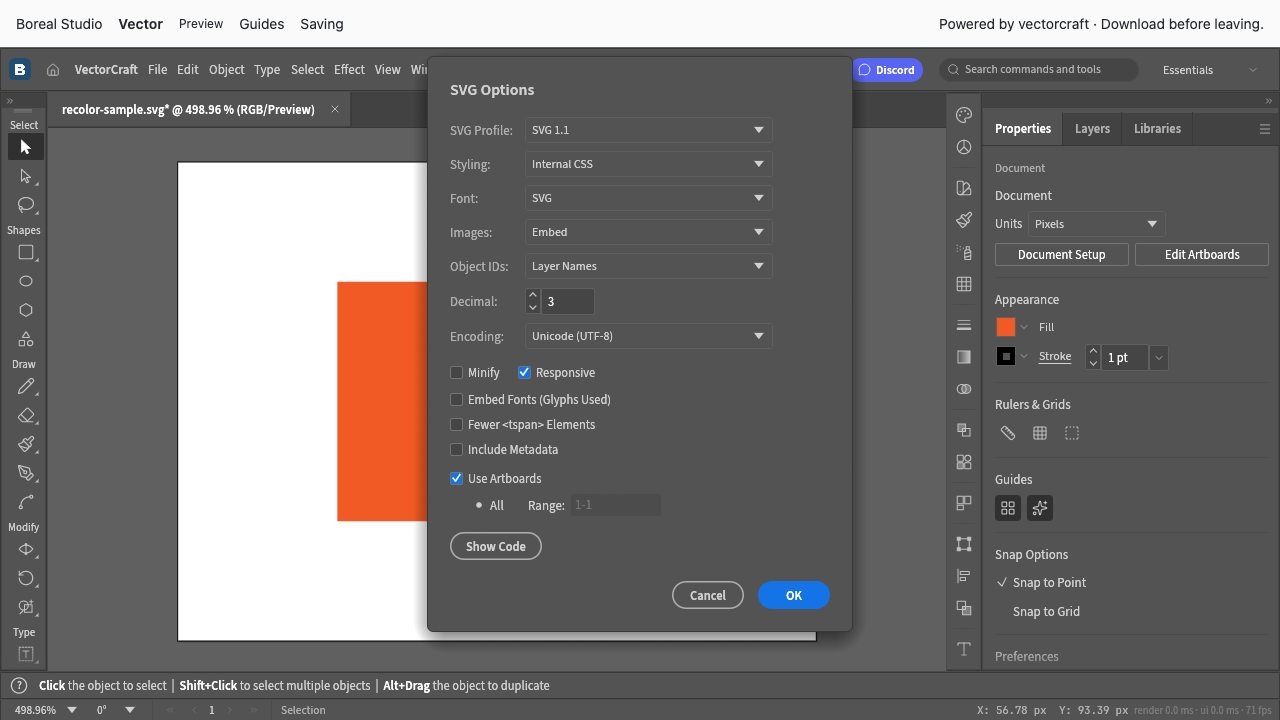
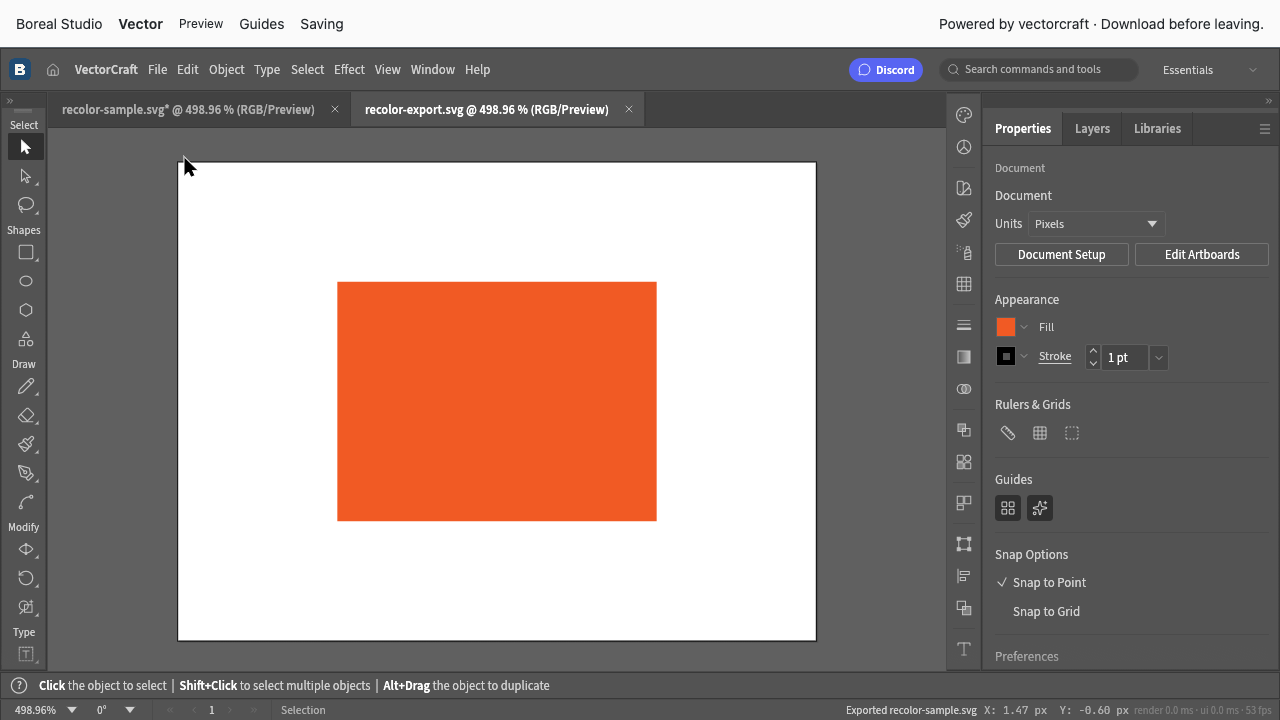
Reopen the download in Vector and in a browser. The rectangle should be orange, with the same proportions and position. Our output keeps the 128 × 96 viewBox and an editable path; the original rectangle element becomes a path during export. It is not a PNG embedded in an SVG.
Why a more complex SVG may need extra checks
If clicking changes the wrong object, check whether your artwork is grouped and select the intended path. Text can depend on fonts; linked images, filters, masks and CSS can behave differently after import. Check the downloaded file in its final destination, not only the editor canvas.
Checked locally and on studio.borealbit.com with VectorCraft 0.8 in Chrome using software WebGL. This one-shape workflow does not establish complex SVG or Illustrator compatibility. Keep the original SVG if the import or export differs.